






Home » Instructions » Photo Module
Photo Module
The Photo module lets you insert an individual photo from your WordPress Media Library or a custom URL.
- Launch the Drag & Drop Editor
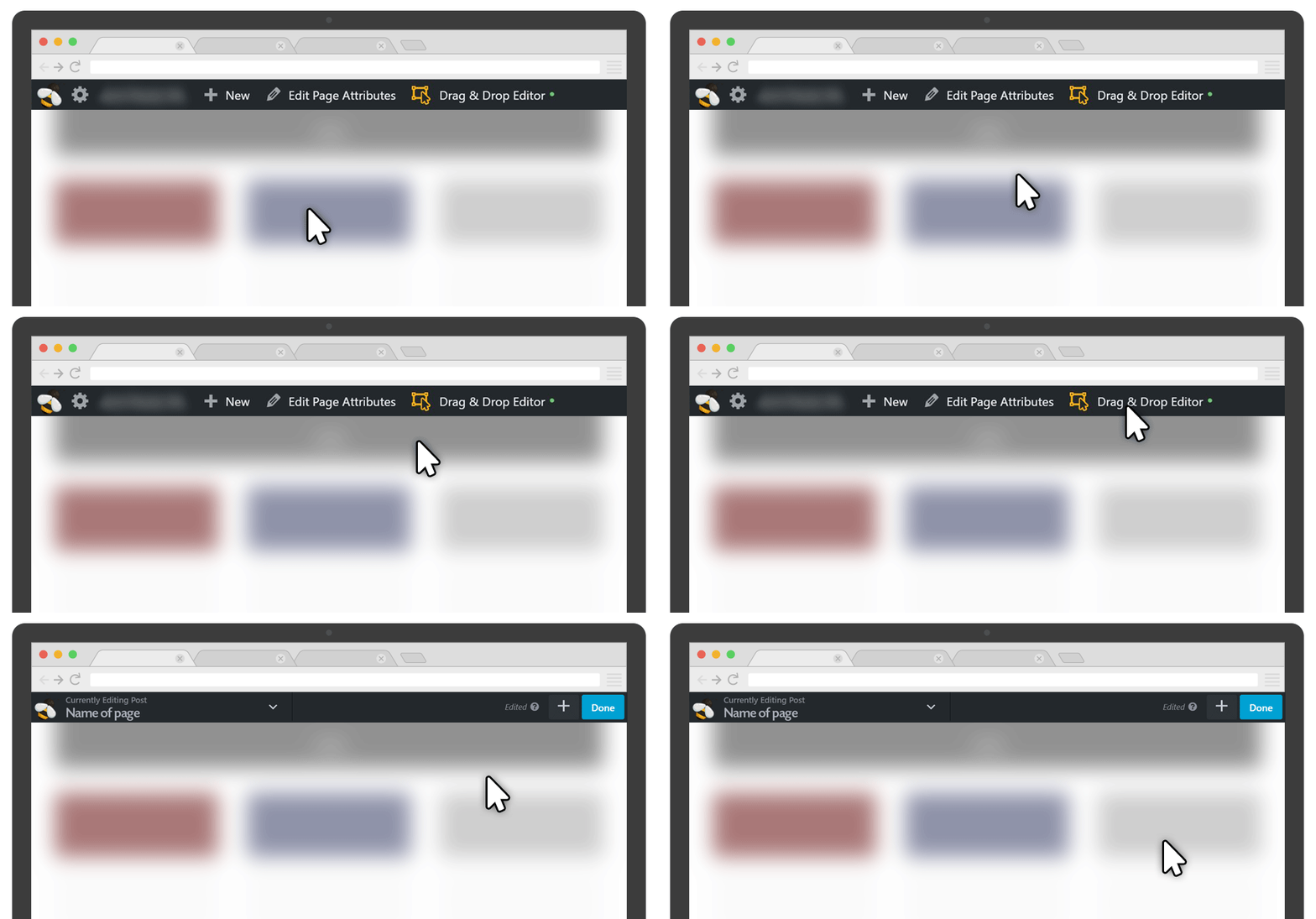
Click the  icon in the upper right corner.
Click and drag the Photo Module onto the page...
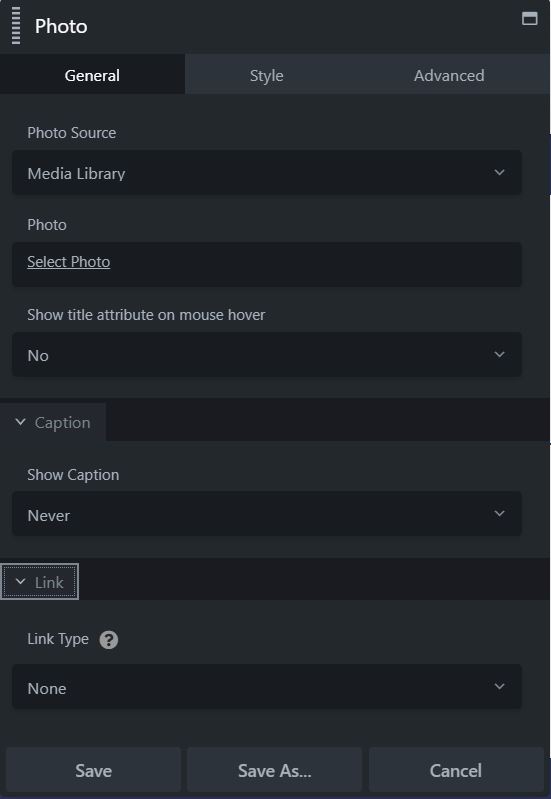
Photo Source:
You can select the photo from your Media Library or use a URL. If the file is from the Media Library, you can select the size of the photo to display.
Photo:
Select the photo or enter the URL and select the size of the photo to display. The software will scale it to fit in the place you want but ensure you're not using a huge image in a small place as it'll slow down the page's load time. There are 72 pixels per inch on standard monitors and 150 pixels per inch on retina devices.
Caption:
You can display the caption of the image and specify how and where the caption appears in relation to the photo: on hover (appearing at the inside bottom of the photo) or below the photo. If you're getting the photo from an external URL, there's a field for you to enter a caption.
Link:
You can add a link to the photo, with several choices of where the link goes:
- A URL, for example, to another web page.
- A lightbox: A popup where the photo appears in a dark background over the page. If you've set the Show caption field to On hover or Below photo, the caption will appear below the photo in the lightbox in both cases
- Photo file: The photo file is displayed by itself.
- Photo page (for Media Library photos only): The photo is displayed with the header, footer, and sidebar of the website.
Crop:
You can crop the photo into several geometric shapes: Landscape, Panorama (longer and shorter than landscape), Portrait, Square, Circle.
Width:
You can specify the width.
Alignment:
You can specify the alignment of the photo within the column: left, center, or right. If you display a caption, both the photo and the caption will be aligned according to this selection.
Border:
General Settings
Style:
Default | None | Solid | Dashed | Dotted | Double
Colour:
Choose a colour or preset colour.
Width:
Choose a width for the border, clicking the link will lock the widths.
Radius and Shadow
Radius:
The Radius setting rounds the corners of the border box area to round the corners of either the border line, if you set one, or the edges of a row, column, or module background.
When you click any of the Radius value fields, a slider appears to quickly adjust the value. You can make all four corners the same value by clicking the Link icon.
Box Shadow:
The Box shadow effect also works with sliders. Moving the X slider to the left adds a background shadow to the left, and moving it to the right adds a shadow to the right. You can also add blur to make it more shadow-like, and increase the spread to change the size of the shadow.
The Advanced tab offers nearly identical settings on all Drag & Drop Editor rows, columns, and modules.
Spacing section
For rows and columns, you can change the default margin and padding values. For modules, you can change the default margin values only.
Visibility section
In the Breakpoint field, you can set the row, column, or module to display or hide based on device size. In the Display field, you can choose to display the row, column, or module always, never, or only to logged-in or logged-out users.
Animation section
You can assign an entrance animation, which activates the first time the page is loaded and the row, column, or module comes into view. The default is None. If you choose an entrance animation, set the delay (how long before the animation starts, in seconds) and a duration (how long the animation lasts, in seconds.).
HTML Element section
You can choose a different HTML container element for the row, column, or module (advanced users only).
For example, for reasons of accessibility you might want to use an HTML container tag that has more semantic value than a <div tag, such as <section>.
Add a CSS ID or class value to the row, column, or module.
ID names must be unique on a page, so assign an ID only when you need to reference that unique ID. For example, a link to an anchor on the page requires a unique anchor so it know exactly where to go. Class names are usually intended for reuse and are often used in CSS rules. For example, you might want to assign a different text size to all HTML headings with an fl-heading class.