






How to create a Brevo Account

What is Brevo?
Brevo, is an email and marketing platform that is commonly used to improve email deliverability—ensuring messages like contact form submissions reach your inbox instead of being flagged as junk.
Here’s a simple step-by-step guide to create a Brevo account (formerly Sendinblue):
1. Visit Brevo’s Website
-
Open a web browser and go to https://www.brevo.com.
-
Click Sign Up Free (top-right corner).
2. Fill Out the Sign-Up Form
-
Enter your email address. Use a branded email address that matches your domain (e.g. info@yourdomain.com). This address will be used to send your website’s emails. Personal addresses such as Gmail or Outlook aren’t accepted.
-
Create a strong password (at least 8 characters, including upper/lowercase letters, numbers, and symbols).
-
Click Create Account.

3. Confirm Your Email
-
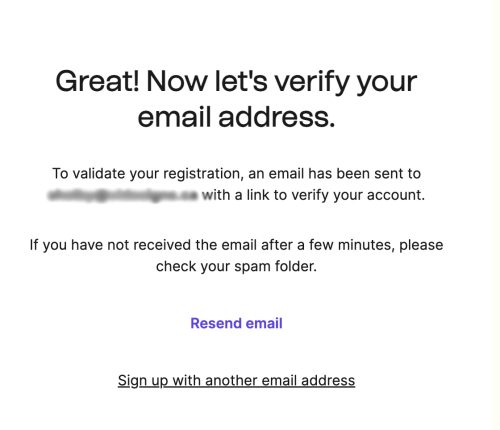
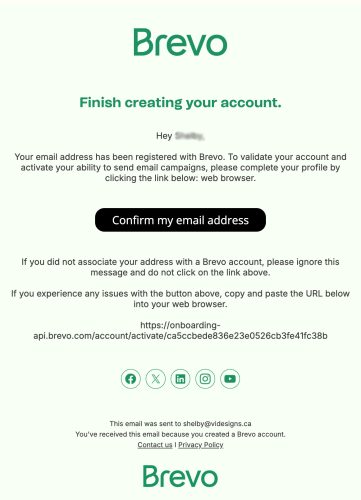
Check your inbox for a confirmation email from Brevo.
-
Open the email and click the Confirm my email button or verification link.

4. Provide Business Details
-
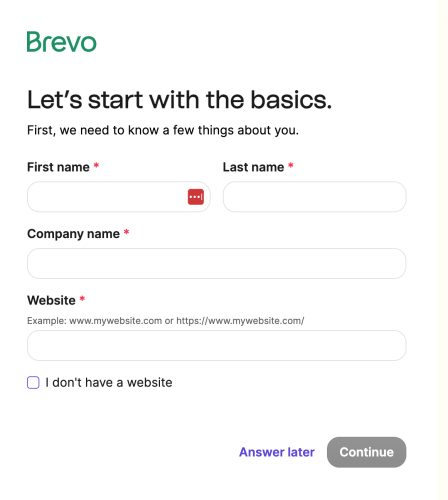
After verifying, Brevo will prompt you for basic info:
-
First and last name
-
Company name (or your personal name if none)
- Website

-
-
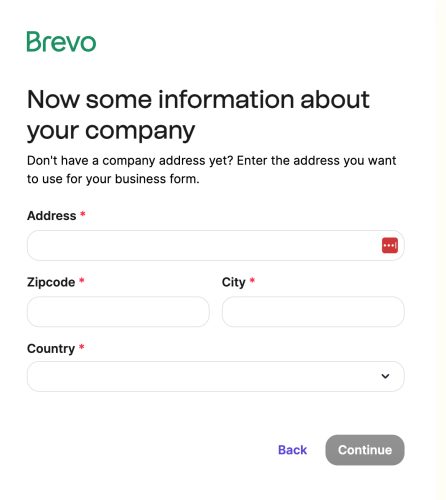
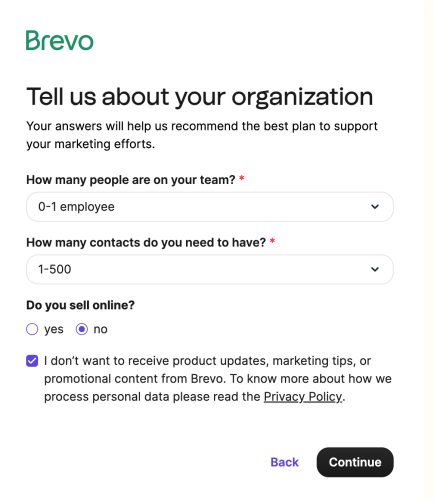
Click Continue. Complete the form shown. Click Continue.


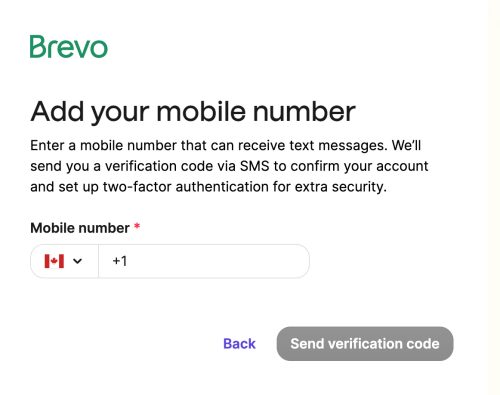
- Add your phone number and click Send verification code. Then enter the code sent.

5. Choose Your Plan and Add Your Domain
-
Chose the Free plan.
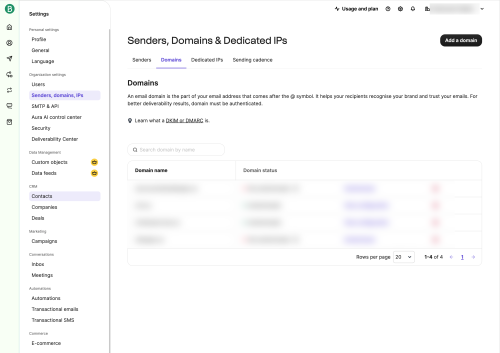
- Using the navigation menu on the left:
Choose Senders, domains, and IPs

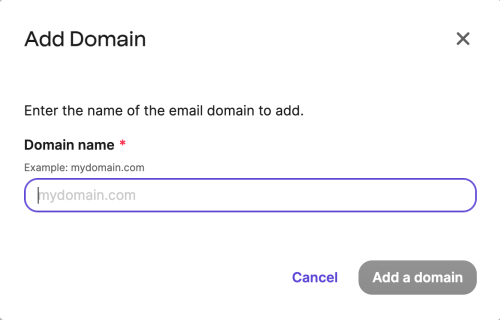
- Click Add Domain, in the upper right and enter your website's domain. For example: mydomain.ca

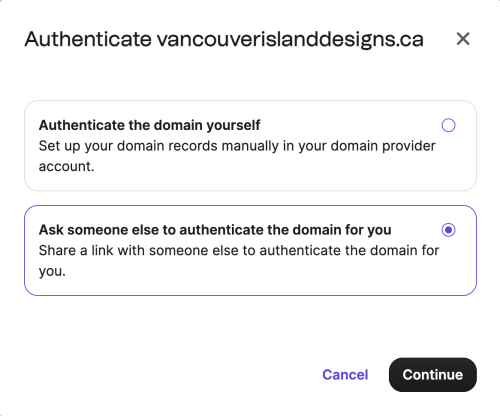
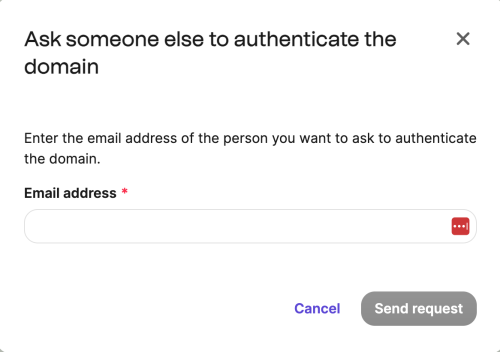
- You'll be given an opportunity to ask someone else to authenticate the domain for you. Choose that option.

- Enter my email address: shelby@videsigns.ca

6. Create and share an API code
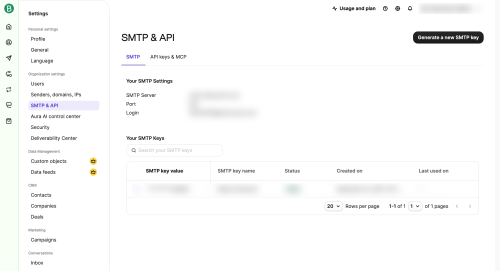
- Using the navigation menu on the left, click SMTP & API

- Click the API Keys & MCP tab, near the middle of the screen
- Click the Generate a New API Key button
- Name your key something like Website Forms and click Generate
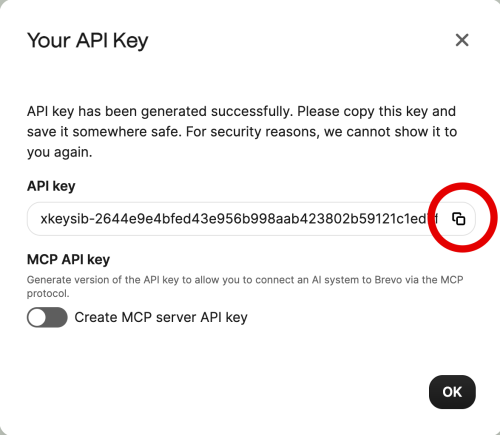
- Copy the API code, using the button provided.

- Click OK
- Email the API code to me at shelby@videsigns.ca