







Access Microsoft 365 Apps

If you’ve upgraded your Microsoft 365 plan through Vancouver Island Designs to include Microsoft desktop applications, you can access and install your available apps directly through Microsoft. Contact us to upgrade if you haven't done so already.
- Go to: https://login.microsoftonline.com/
- Sign in using the Microsoft 365 email address and password provided to you by Vancouver Island Designs. If you have another Microsoft account, you'll want to sign out first.
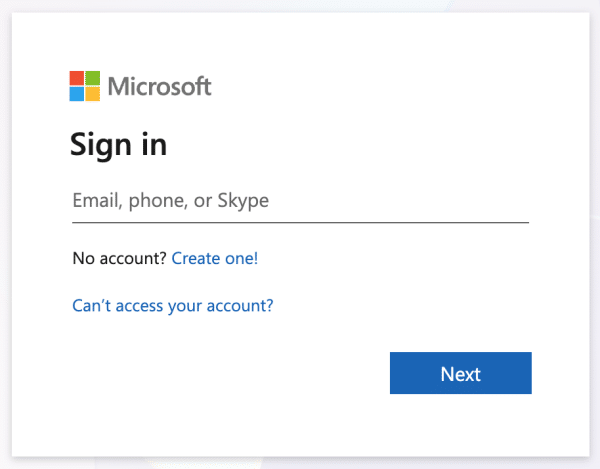
Enter the email address provided to you
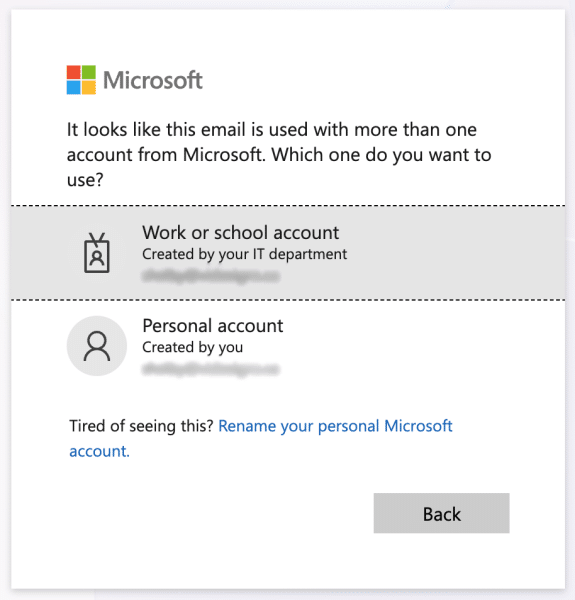
Click Work or school account
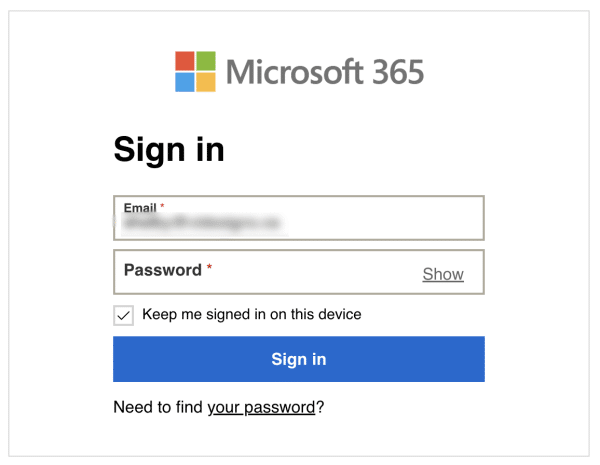
You may need to sign in a second time
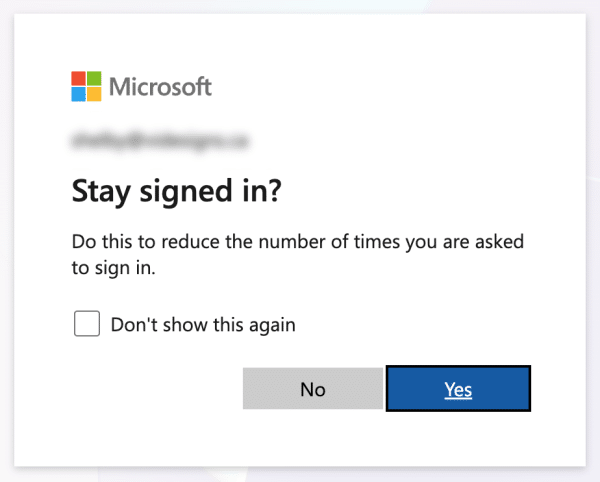
You can choose to Stay signed in

Once signed in, you’ll be able to see the Microsoft apps included with your account, which may include Word, Excel, Outlook, PowerPoint, OneDrive, Teams and other Microsoft 365 services depending on your plan.
Installing Microsoft 365 Apps
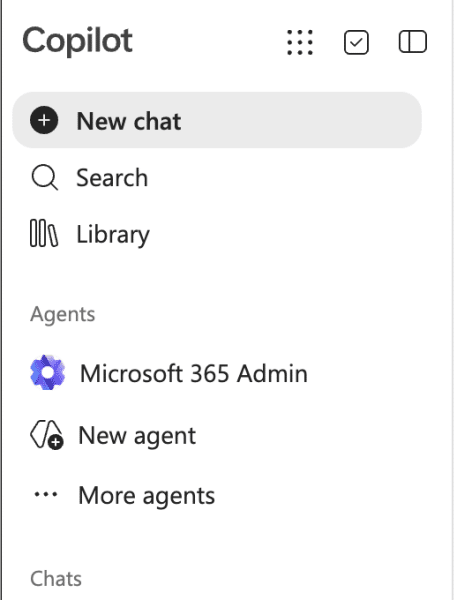
- Once logged in you'll see the Copilot home screen below:

- Click

- Click More apps
- Then in the upper right corner click Install Apps
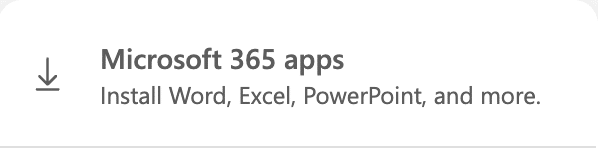
- Then click the download button below

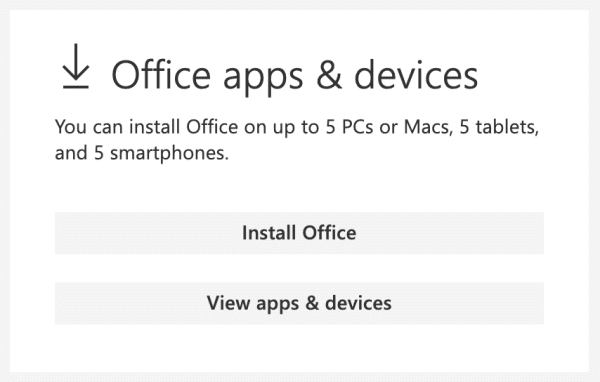
- You'll then see a landing page with links to install the Office apps, view apps & devices etc.

- Click Install Office to download the Office Software Suite

If you have any questions or problems, please contact us. We don't provide technical support but can often help point you in the right direction or recommend when an IT Technician should get involved.
Already Have Microsoft Apps Installed?
If Word, Excel, Outlook or another Microsoft application is already installed on your computer, you may not need to reinstall it.
Open the application and sign in with the Microsoft 365 email address associated with your upgraded subscription. Once signed in, Microsoft should recognize the licence attached to your account.